Client Installation
VoiceCraft.Client is the player-facing app. Every player who wants to speak or hear proximity voice needs it running on their own device.
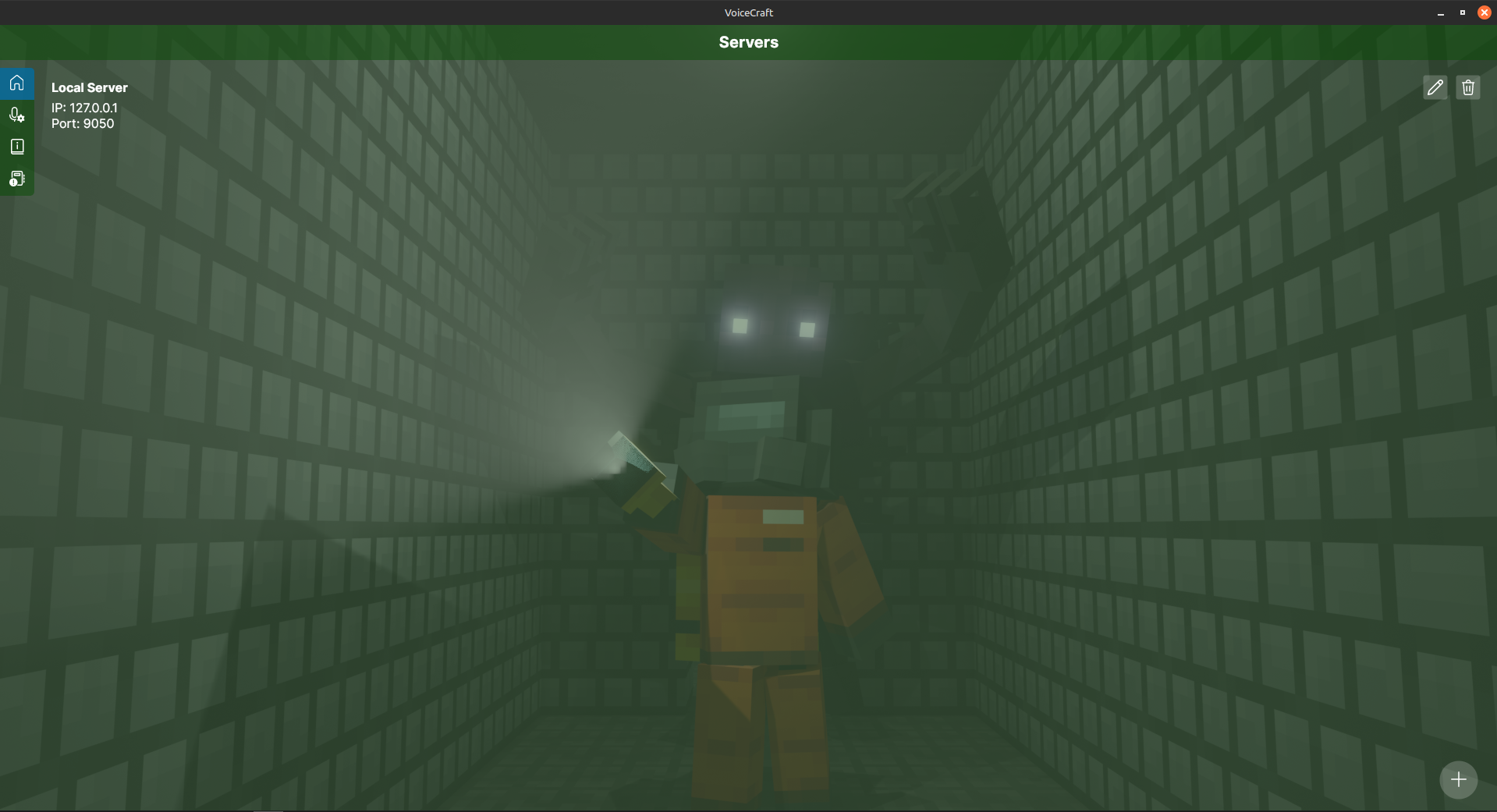
Install the client after VoiceCraft.Server is reachable. During first launch you will add a server entry that points to the VoiceCraft UDP endpoint, usually host:9050.
VoiceCraft 1.7.0 provides native desktop and mobile clients. The previous browser/web client target is no longer part of the core release.
Before you start
You need:
- the server address players should use
- the server UDP port from
VoiceCraftConfig.Port - a microphone and playback device available to the operating system
- matching
Positioning Typebetween client and server - a
1.7.xclient for a1.7.xserver
For local testing, the endpoint is usually:
127.0.0.1:9050
For remote servers, use the public or LAN address of the machine running VoiceCraft.Server.
Windows
- Download
VoiceCraft.Client.Windows.<Architecture>.v1.7.0.zip. - Extract the archive.
- Run
VoiceCraft.Client.Windows.exe. - If Windows SmartScreen appears, verify that the file came from the official release page before continuing.
Linux
- Download
VoiceCraft.Client.Linux.<Architecture>.v1.7.0.zip. - Extract the archive.
- Grant permissions and run:
chmod +x ./VoiceCraft.Client.Linux
./VoiceCraft.Client.Linux
If the app cannot see audio devices, check PulseAudio/PipeWire permissions and whether the app is running inside a restricted sandbox.
macOS
Choose the package that matches your device:
- Apple Silicon: arm64 package
- Intel Mac: x64 package
If macOS blocks startup:
xattr -dr com.apple.quarantine /Applications/VoiceCraft.app
Only remove quarantine for builds you intentionally downloaded and trust.
Android
- Download
VoiceCraft.Client.Android.<Architecture>.v1.7.0.zip. - Extract the archive.
- Open the
.apkfrom the archive and install. - Allow microphone permission when Android asks.
VoiceCraft 1.7.0 uses the Android package version 17.
iOS
- Download
VoiceCraft.Client.iOS.arm64.v1.7.0.zip. - Install IPA via AltStore, TestFlight, or another supported distribution path.
- If needed, allow the profile in iOS settings.
- Allow microphone and local network permissions when iOS asks.
1.7.0 includes an iOS sample-rate conversion fix. If older builds produced distorted input on some iOS devices, retest capture with this release.
The iOS bundle identifier changed to team.avion.voicecraft.
No browser client in 1.7
The browser/web client project was removed from the core repository in 1.7.0.
Use one of the native clients instead:
- Windows
- Linux
- macOS
- Android
- iOS
First launch checklist
- Open the client.
- Select input and output devices.
- Use microphone test to confirm input level.
- Add a server entry:
- host: VoiceCraft server address
- port:
VoiceCraftConfig.Port
- Confirm
Positioning Typematches the server. - Connect before starting the Minecraft bind flow.
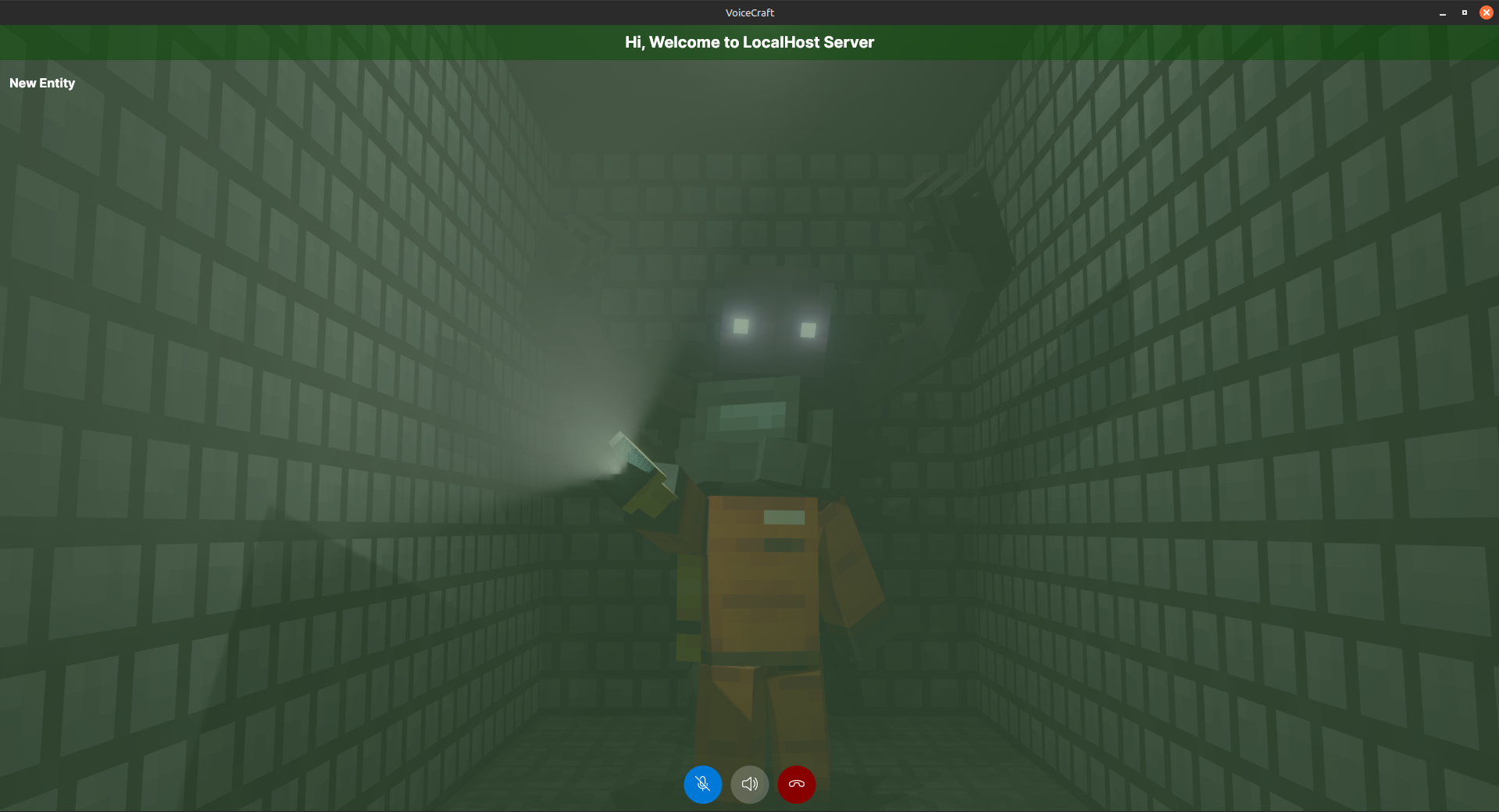
The client connecting successfully only proves the voice endpoint is reachable. Minecraft proximity still depends on the addon or plugin connecting to the matching transport.
Common first-launch issues
- No microphone input: check OS microphone permission and selected input device.
- iOS client cannot reach a LAN server: check local network permission and the server address.
- Client connects but no proximity:
check Minecraft transport, bind flow, and
Positioning Type. - Remote server does not connect:
confirm the UDP port is open between the player and
VoiceCraft.Server. - Player hears everyone at the wrong distance: check entity position updates, world IDs, and effect bitmasks.
Screenshots